
IPTV Australia Setup Guide (Step-by-Step Setup for All Devices)
Australian IPTV Setup guide is quick and easy once you have the right app for your device. Whether you’re using an Android TV, Firestick, Smart TV, iPhone, Windows PC, or MAG box, this guide will walk you through the full installation process step by step.
We’ve designed this IPTV setup guide to be beginner-friendly, so even if you’ve never used IPTV before, you’ll be streaming in minutes.
iQuick Setup Information
Downloader Code (8K Pro App)
Popular IPTV Apps Supported
These apps are mostly used on different devices during IPTV setup guide; these apps work perfectly with most IPTV Australia subscriptions and support Xtream Codes and M3U playlists.
1. Android Smart TVs, Phones, Tablets & Boxes Setup Guide
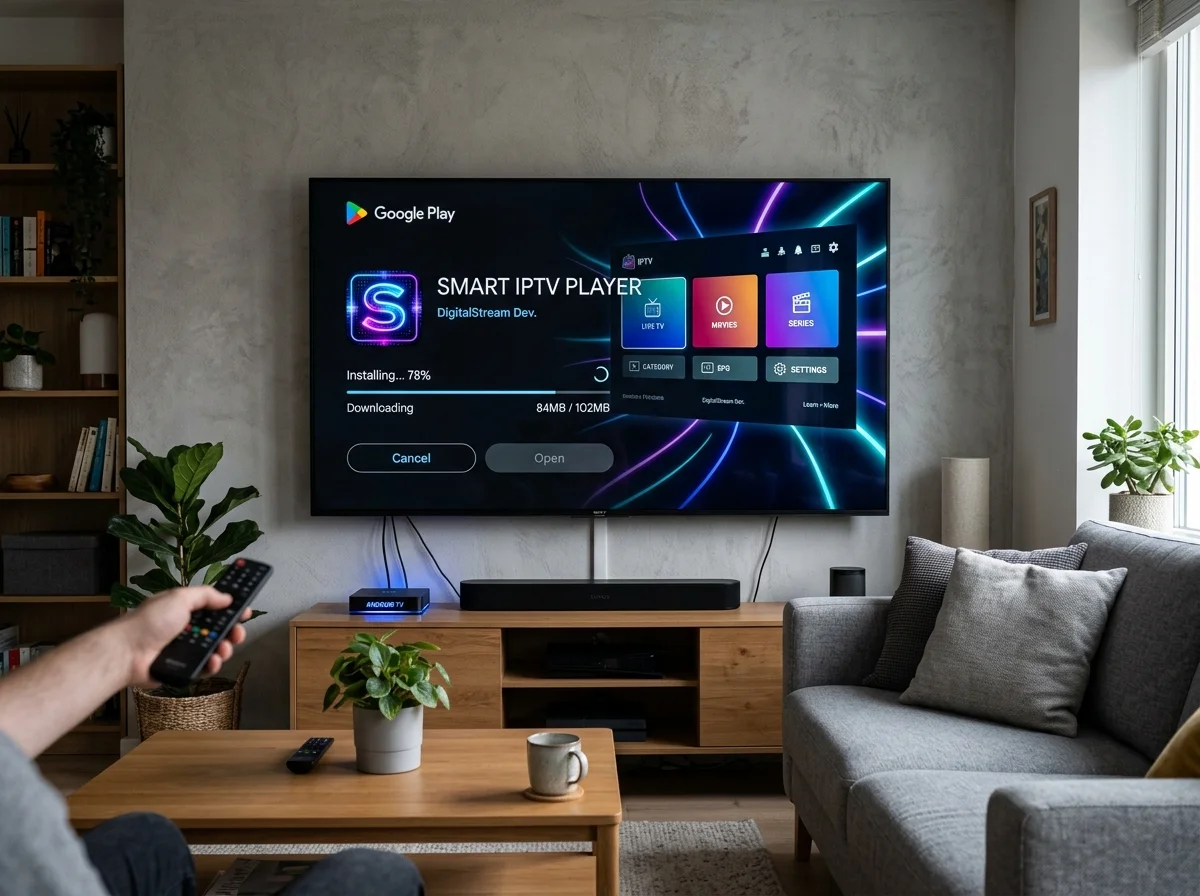
IPTV setup guide on android is one of the easiest ways to use Australian IPTV services. You can either install a player directly from the Google Play Store or use the Downloader method for the official 8K Pro app.
Option A: Install an IPTV Player from Google Play Store
Open the Google Play Store on your device.
Search and install any of the following IPTV apps: 9Xtream IPTV, IBO Player, CRPlayer, XCIPTV Player.
Open the app after installation.
Choose your preferred login method: Xtream Codes API or M3U Playlist URL.
Enter the login details provided with your IPTV subscription Australia package.
Save the information, load channels, and start streaming.
Option B: Install the Official 8K Pro App Using Downloader
This is one of the most popular methods followed during Android IPTV setup guide.
Open the Google Play Store.
Search for Downloader and install it.
Open the Downloader app.
Enter the Downloader Code: 1666282
Download and install the 8K Pro IPTV app.
Open the app and login using your IPTV details.
Important Tip
If Android blocks the installation: Go to Settings → Enable Install Unknown Apps for Downloader. This allows third-party IPTV apps to install correctly.
2. Amazon Firestick & Fire TV Setup Guide
Firestick is one of the most popular devices for IPTV in Australia because it’s affordable, fast, and easy to use.
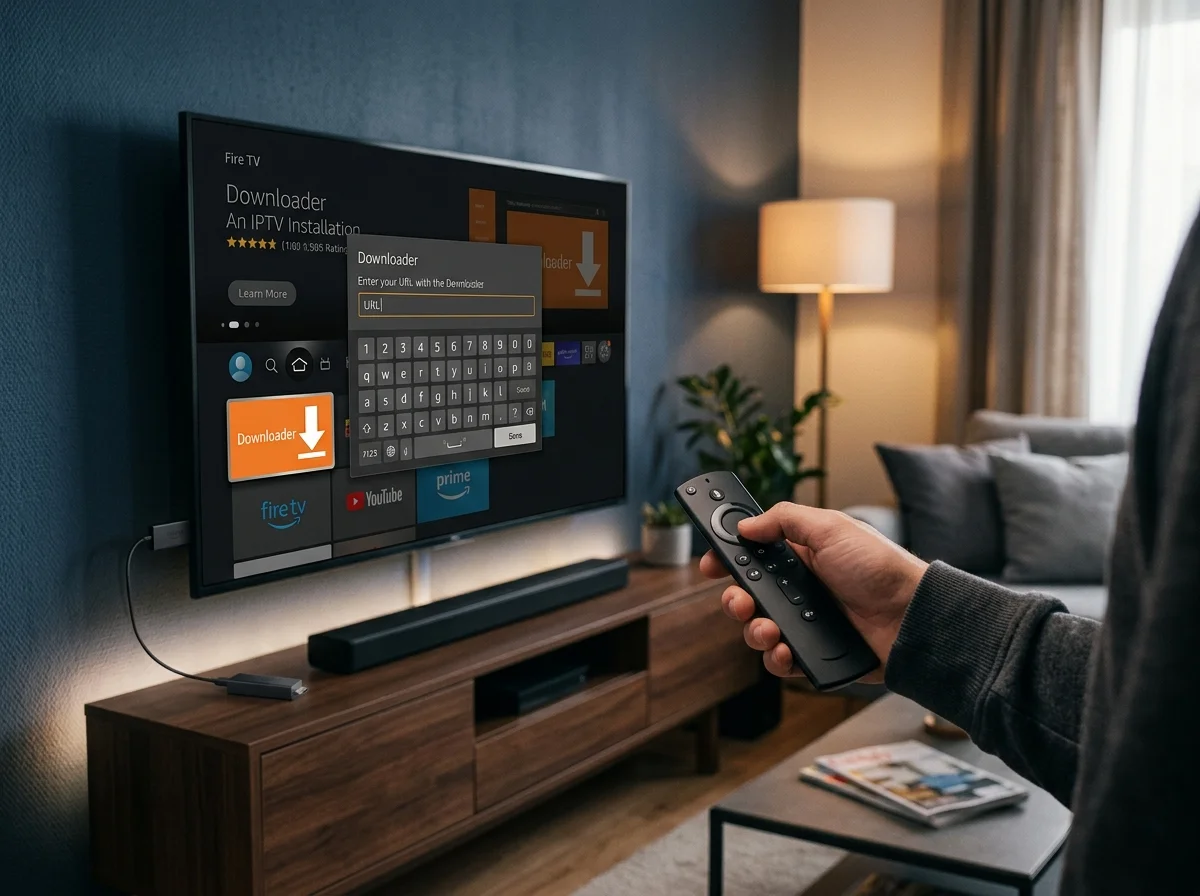
Firestick IPTV Setup Guide
From the Firestick home screen: Go to Find → Search.
Search for: Downloader (by AFTVnews).
Install the Downloader app.
Go to: Settings → My Fire TV → Developer Options.
Enable: ADB Debugging, Apps from Unknown Sources. If you see “Install Unknown Apps”, allow Downloader access.
Open Downloader.
Enter the code: 1666282
Download and install the IPTV app.
Open the app, enter your IPTV login details, and begin streaming.
Firestick Performance Tip
After installation, restart your Firestick once for smoother streaming and improved app performance.
3. LG Smart TV, Samsung Smart TV & Roku Setup
Smart TVs are perfect for users who want a clean, cable-free entertainment setup.
Most Australian IPTV users prefer apps like:
- IBO Player
- CR7Player
because they are stable and easy to configure.
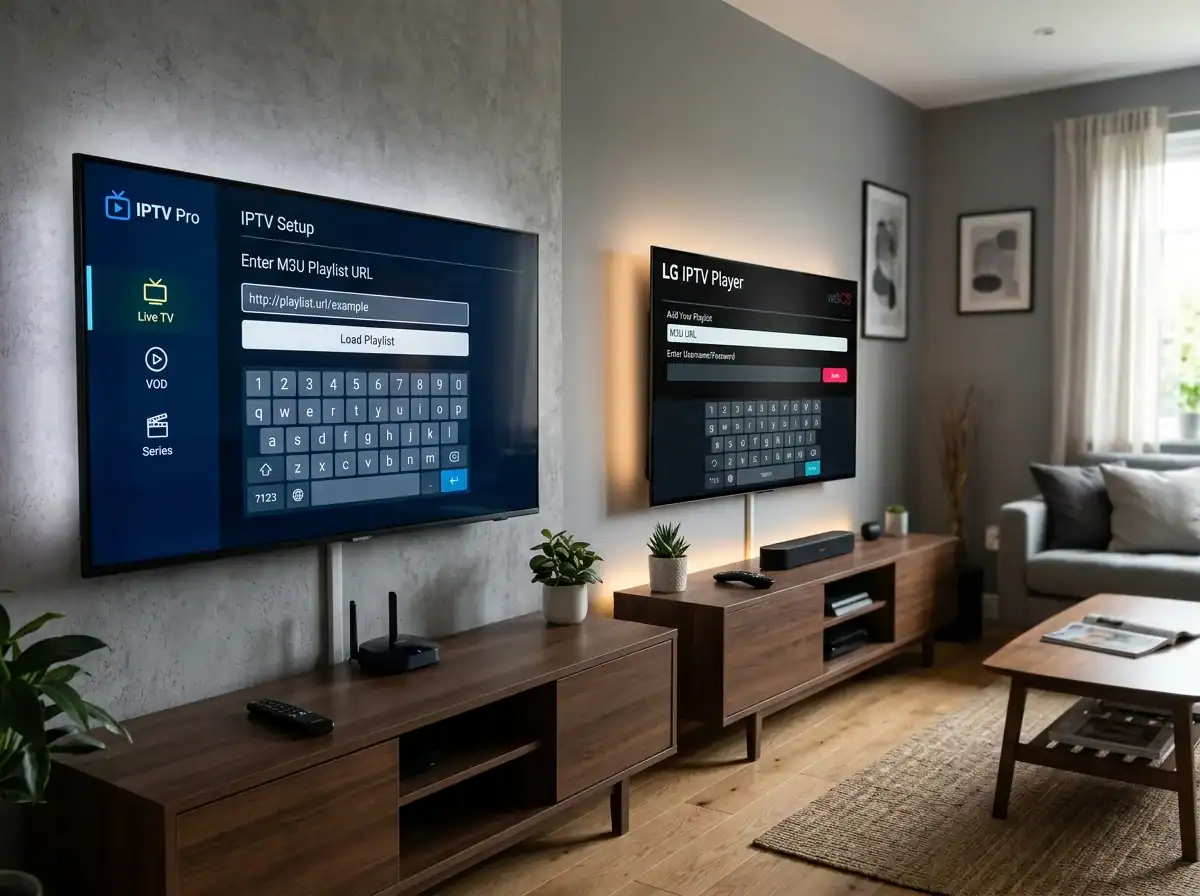
LG Smart TV Setup (webOS)
Open the LG Content Store.
Search for: IBO Player, CR7Player.
Install and open the app.
The app will display a Device ID or MAC Address.
Send this information to your IPTV provider for activation if required. Once activated, your channels will load automatically.
Samsung Smart TV Setup (Tizen OS)
Open Samsung Apps.
Search and install: IBO Player, CR7Player.
Open the app and note the Device ID or MAC Address.
Provide the information for IPTV activation.
Roku TV & Roku Stick Setup
Open the Roku Channel Store.
Search for available IPTV players or IBO Player.
Install the app.
Open the app and send your MAC Address to support for playlist activation.
If your Roku model doesn’t support certain IPTV apps, contact support for alternative setup methods.
4. Windows PC & MacBook IPTV Setup
Watching IPTV on a computer gives you excellent streaming quality and flexibility.
Windows PC Setup
Open the Microsoft Store.
Search and install: IBO Player, IPTV Smarters Expert.
Launch the app.
Login using: Xtream Codes API or M3U Playlist URL.
Save settings and load channels.
MacBook Setup
Open the Apple App Store.
Search and install: Smarters Player Lite, IBO Player.
Open the app and add your IPTV details.
Load your playlist and start streaming.
Streaming Tip for PC & Mac
For the best 4K streaming experience: Use a wired LAN connection whenever possible. Avoid unstable public Wi-Fi networks.
5. iPhone, iPad & Apple TV Setup
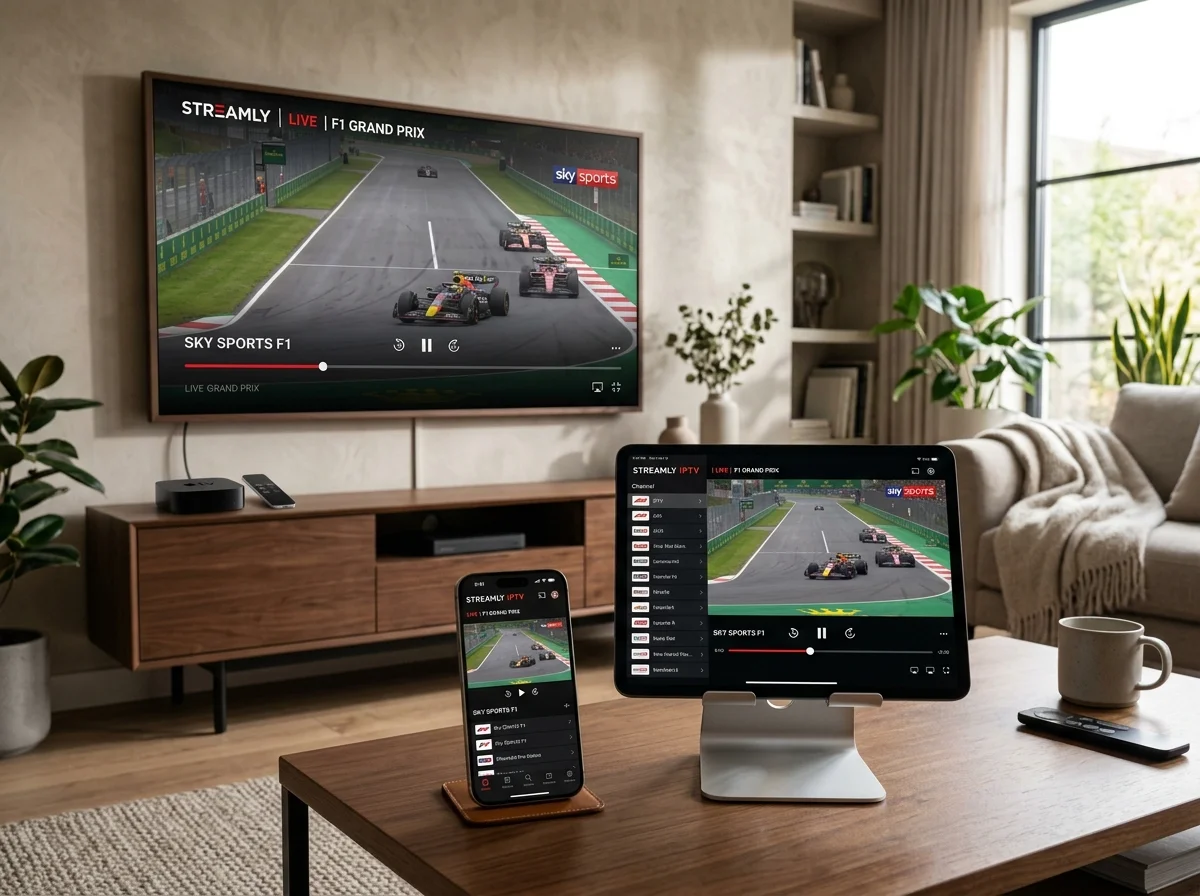
Apple devices work very well with modern IPTV applications. Learn IPTV setup guide on iOS devices.
iPhone & iPad Setup
Open the Apple App Store.
Install one of these IPTV apps: Smarters Player Lite, IBO Player, VU IPTV Player.
Open the app.
Enter: Xtream Codes login details or M3U Playlist URL.
Save and load your channels.
Apple TV Setup
Open the App Store on Apple TV.
Install: Smarters Player Lite or IBO Player.
Enter your IPTV subscription details.
Load channels and enjoy streaming.
6. MAG Box & STB Device Setup
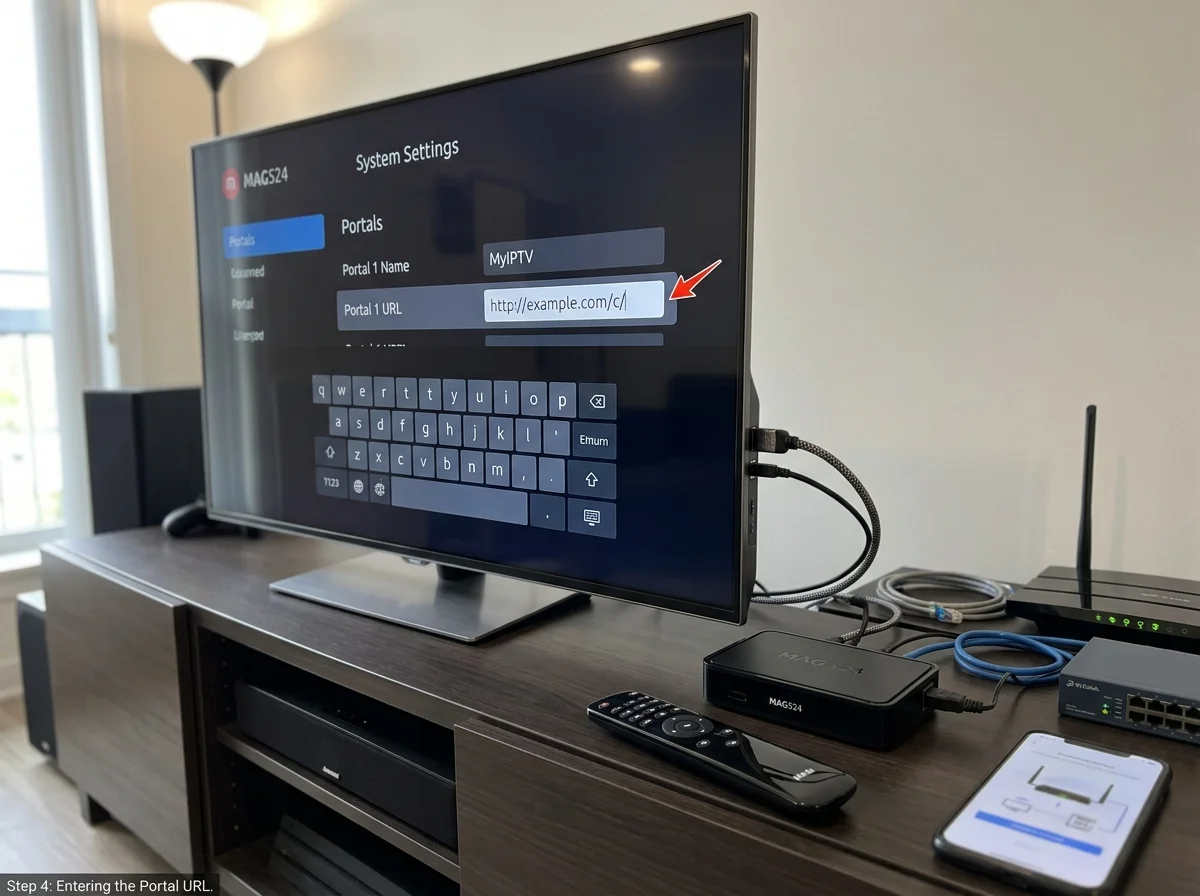
MAG boxes use a portal-based activation system instead of standard login methods. So IPTV setup guide is different on these devices.
MAG IPTV Setup Guide
Locate your MAG device MAC Address: Settings → System Settings → Device Info.
Send your MAC Address to your IPTV provider.
You will receive a Portal URL.
Enter the Portal URL into your MAG box settings.
Restart the device.
Channels will load automatically.
Important Note
Make sure your MAC Address is entered correctly. Even one incorrect character can prevent the IPTV portal from loading.
IPTV Australia Troubleshooting Guide
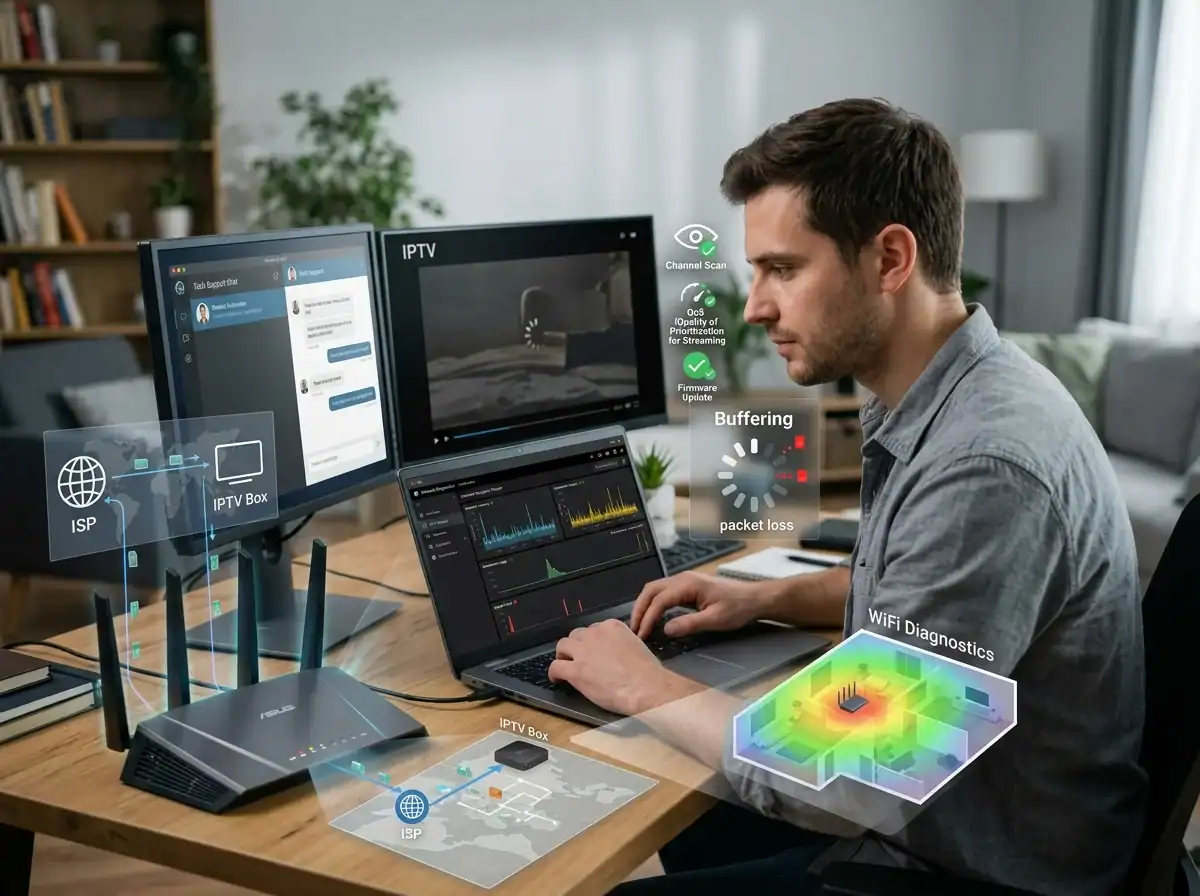
If you experience issues during IPTV setup guide, these quick fixes usually solve the problem.
| Issue | Solution |
|---|---|
| App Not Installing? | Enable Install Unknown Apps for Downloader on Android or Firestick. |
| Buffering Problems? | Restart your router · Use 5GHz Wi-Fi · Use a LAN cable · Lower stream quality if needed. |
| Channels Not Loading? | Double-check Username, Password, Server URL, M3U Playlist Link. Incorrect login details are the most common setup issue. |
| Slow Streaming on ISP? | Some internet providers may throttle streaming traffic during peak hours. Using a VPN can improve stability and privacy. |
Need Help for IPTV Setup Guide on Another Device?
No problem. If your TV, streaming device, or operating system isn’t listed in this guide, simply contact our support team and we’ll help you with IPTV setup guide step by step.
Frequently Asked Questions
Q1: What is the Downloader code for the IPTV Australia 8K Pro app?
Q2: Which IPTV app is best for Android devices?
Q3: How do I install IPTV on Firestick?
Q4: Can I use IPTV Australia on LG or Samsung Smart TVs?
Q5: Why do MAG boxes require a MAC Address?
Final Thoughts
Australian IPTV Setup guide is easier than most people expect. With the right IPTV app and a stable internet connection, you can start streaming live TV, sports, movies, and international content in just a few minutes.
Whether you’re using:
- Firestick
- Android TV
- Smart TV
- Apple devices
- MAG Box
our IPTV setup process is designed to be simple, fast, and beginner-friendly. Visit our IPTV Australia homepage for more information.